Volunteer Workbook
- Grant Writing Updates
- Social Media
- FrameVR Online Campus Building Basics
- Debugging & Performance
- About Building in FrameVR + Advanced Interactions
- Using Scenes in FrameVR
- iLRN 2026 Virtual Campus Canva Projects - Infrastructure
- iLRN2026 Virtual Campus design guidelines / template
- Conference Campus & Volunteer Readiness Benchmarks
- Conference & Campus Style Guide
Grant Writing Updates
Social Media
Social Media Basics for iLRN
iLRN uses Canva to create many of our images on a shared account.
Current tasks for iLRN 2026 are being determined. Please check back for more information.
If you have any questions, please get in touch with volunteers@immersivelrn.org to have them answered.
FrameVR Online Campus Building Basics
More information to come regarding accessibility and usability design activities.
Visit https://codex.immersivelrn.org/books/conference-online-hosts-private/chapter/ilrn-2026-framevr-campus-design-project for the Google Sheet handling Campus Construction for iLRN 2026
*Requires access, private shelf, email volunteers@immersivelrn.org for access.
Debugging & Performance
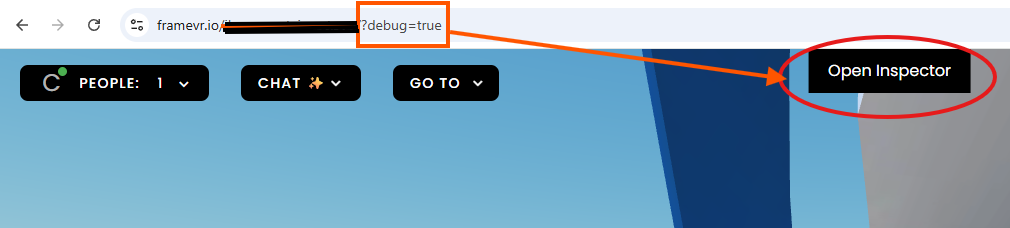
To view the performance in greater depth (beyond what is built into the regular FrameVR menu), add ?debug=true to the end of any FrameVR URL.
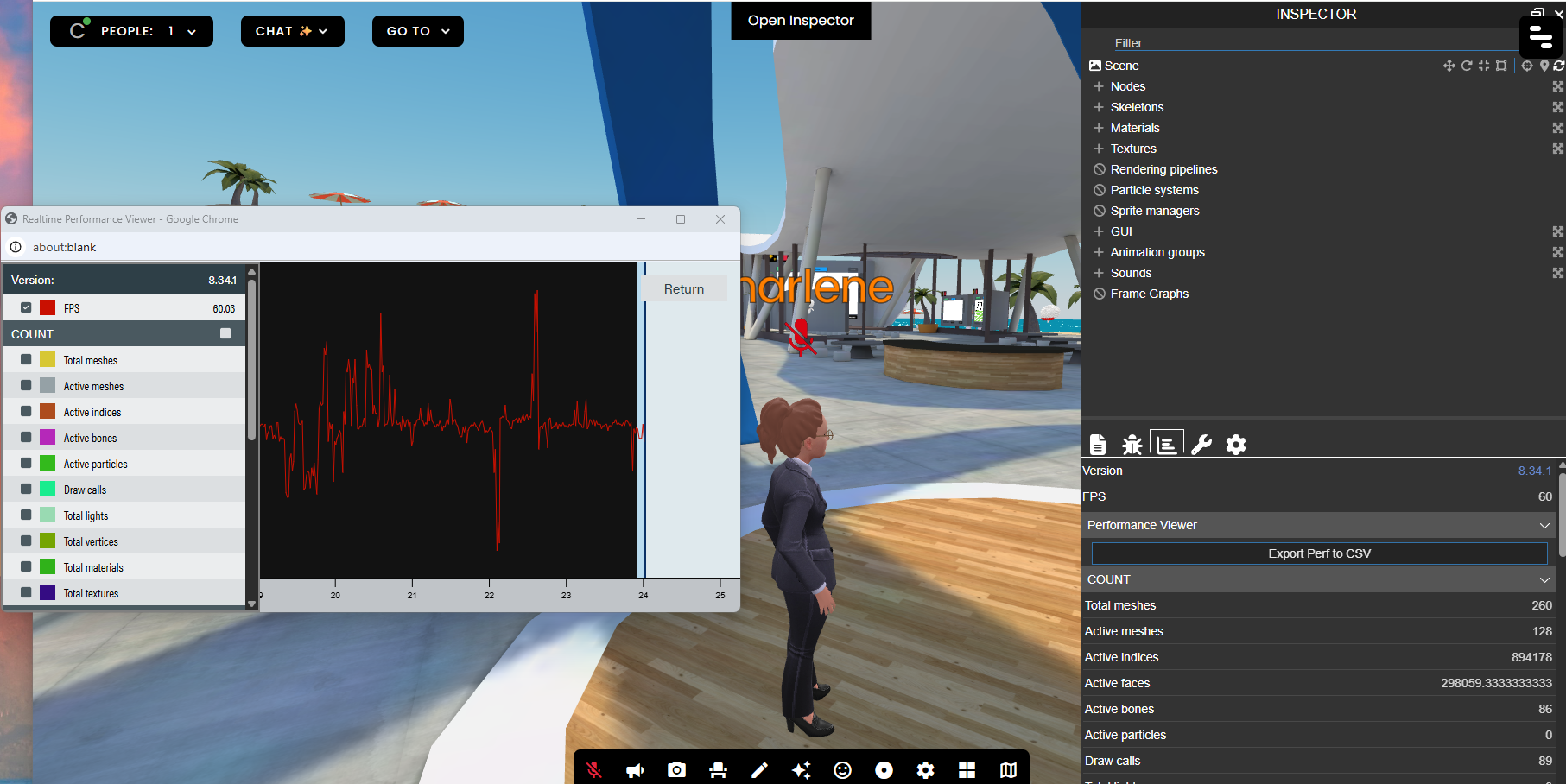
Once you have done this and refreshed, you will have the option to "Open Inspector," which will show you a panel with various options to help you understand how well the frame is performing in terms of draw calls and more.
About Building in FrameVR + Advanced Interactions
FrameVR Technical Capabilities
iLRN Campus Codex — Engine, interactivity, and 3D asset support
Under the Hood: Babylon.js
FrameVR is built on Babylon.js, a powerful open-source 3D rendering engine. However, FrameVR abstracts most of Babylon.js’s native functionality behind its own interface. Users work within FrameVR’s sandbox rather than having direct access to the full engine.
Advanced features such as complex physics simulations and custom scripting are not directly accessible within the platform. Teams should work within the Action Editor and supported asset formats to achieve interactivity.
FrameVR Knowledge Base & Other Info
FrameVR offers many valuable resources for users building on their platform. Here are a few of the options available:
Interactivity: The Action Editor
FrameVR’s Action Editor provides a no-code interface for adding interactivity to spaces. While limited compared to full engine access, it supports a meaningful range of triggers and responses:
• Play Audio — Trigger ambient sounds, narration, or sound effects on proximity or interaction
• Animate Models — Activate animation cycles embedded in uploaded 3D assets
• Show / Hide Objects — Toggle visibility of elements based on user actions
• Open URLs — Link out to external content, documents, or media
• Teleport Users — Move participants to different locations within or between spaces
These tools are well-suited for guided experiences, interactive exhibits, and layered storytelling within a campus environment.
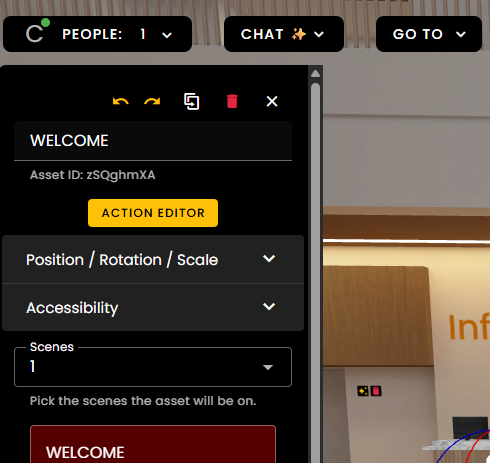
Access this tool by entering Edit Mode > Click Asset > Open Action Editor > Set Trigger + Action


3D Assets: glTF Format
FrameVR supports glTF (.glb/.gltf), the widely used open standard for 3D assets. Importantly, glTF files can contain embedded animation cycles, which can then be triggered via the Action Editor — making it possible to bring in animated objects (moving parts, characters, environmental effects) without custom code.
Recommended tools for creating or converting glTF assets:
• Blender (free, open-source) — excellent glTF export with full animation support
• Sketchfab — browse and download community glTF models, many with embedded animations ( low poly items and Museum-specific https://sketchfab.com/members?segment=organization%2Fmuseum&sort_by=-followerCount )
• Various online converters for existing 3D models
Gaussian Splats: Photorealistic Spatial Capture
FrameVR supports Gaussian Splat files (.ply / .splat), a cutting-edge format for representing real-world spaces with photorealistic quality. Gaussian Splats are captured using photogrammetry-adjacent workflows and rendered as volumetric point clouds, producing immersive, high-fidelity representations of physical locations.
This is a significant capability for campus-building — real landmarks, architectural spaces, or culturally significant sites can be captured and placed directly into a FrameVR environment.
Capture tools to explore:
• Luma AI — mobile-friendly capture, accessible for most devices
• Polycam — supports Gaussian Splat export alongside standard photogrammetry
• Postshot — desktop processing for higher-quality splat results
[DRAFT: Example soon, check back for update! ]
Note: A Gaussian Splat of a nearby landmark is being explored as a demonstration asset for the iLRN campus — a model for how regional teams might contribute place-based content to shared virtual spaces.
Using Scenes in FrameVR
iLRN 2026 Virtual Campus — Codex
Using Scenes in FrameVR
Draft Areas, Alternate Configurations & Advanced Scene Management
Last Updated: April 10, 2026 | Maintained by: Charlene Hardin
Codex Section: FrameVR Build Documentation
What Are Scenes?
Scenes are one of FrameVR’s most useful but least understood features. At its simplest, a Scene is a saved state of your Frame — everything in it, where it is, and how it’s configured. A single Frame can have multiple Scenes, and you can switch between them instantly.
Think of Scenes like different “slides” of the same room. The Frame URL stays the same, but the contents of the space can change completely depending on which Scene is active. Visitors always enter whichever Scene is currently set as the active one.
Why This Matters for Building
When you’re actively developing a Frame, you don’t always want your work-in-progress visible to everyone who walks in. Scenes solve this by letting you maintain a “live” version of the space while building and experimenting in a separate draft state — all within the same Frame URL.
This means you can iterate freely without worrying about visitors stumbling into half-finished layouts, test new asset placements without disrupting the live experience, and preserve a clean baseline you can always return to.
Common Uses
• Draft mode — Build and test new layouts or assets in a Scene without affecting what visitors see when they arrive
• Event configuration — Set up a Scene specifically for a live session (with a presenter screen, specific seating arrangement, etc.) and switch back to the standard configuration afterward
• Preservation — Save a clean baseline Scene before making major changes, so you can always revert if something goes wrong
• Seasonal or programming variation — Configure different Scenes for different activities within the same Branch House without needing separate Frame URLs
How to Create and Switch Scenes
|
|

|
|

Important: What Carries Across All Scenes
Not everything is Scene-specific. Certain elements are persistent across all Scenes in a Frame regardless of which Scene is active.
|
Watch out: Built-in Web Browsers The built-in web browser is one of the most notable persistent elements — if you have a browser open or configured in your Frame, it will be visible and active in every Scene. Keep this in mind when planning your layout, particularly if you’re using a browser for a specific event or presentation and don’t want it to appear in your standard visitor-facing Scene. |
As a general rule: if you’re unsure whether an element is Scene-specific, test it in a draft Scene before relying on it in a live configuration. For more information, always consult FrameVR’s Knowledgebase.
Things to Know
• The Scene that loads by default when someone enters your Frame URL is whichever Scene is currently set as active
• Switching Scenes affects all visitors currently in the Frame — coordinate with your team before switching during a live event
• Asset budgets apply across your whole Frame, not per Scene — a heavily loaded draft Scene still counts toward your performance limits even if it isn’t the active one
Recommended Practice for iLRN Builders
Keep at least two Scenes in any Frame you are actively developing:
|
LIVE |
The current visitor-facing version. This is what people see when they enter the Frame. Only update this Scene when changes are ready to go live. |
|
DRAFT |
Your active working area. Build, test, and experiment here freely. Keep this Scene clearly named so anyone with build access knows not to set it as active by mistake. |
Name your Scenes clearly and consistently. Avoid generic names like “Scene 1” or “Scene 2” — use descriptive labels that make the purpose immediately obvious to any team member who opens the Frame settings.
Advanced Features
Triggering Scene Changes with the Editing Panel
This opens possibilities for guided experiences, event transitions, and interactive storytelling within a single Frame. A persistent navigation element that appears in all Scenes and triggers transitions between them is one practical application.
|
|

Setting Items to Appear Across Multiple Scenes
By default, assets you place in a Frame are associated with the Scene you’re working in. However, when editing an individual item, you can configure it to appear in multiple Scenes simultaneously.
This is useful for elements that should be consistent across several configurations — like permanent signage, a logo, navigation buttons, or a welcome poster — without having to duplicate them manually in each Scene.
|
|

Quick Reference
|
Question |
Answer |
|
Does the Frame URL change between Scenes? |
No. The Frame URL stays the same regardless of which Scene is active. |
|
Can visitors switch Scenes themselves? |
Only if you set up an Action Editor trigger they can interact with. Otherwise only admins/builders can switch Scenes. |
|
Do asset budgets apply per Scene? |
No. Budgets apply to the whole Frame. All Scenes count toward your total. |
|
Are web browsers Scene-specific? |
No. Built-in web browsers are persistent across all Scenes. |
|
Can I make an asset appear in multiple Scenes? |
Yes. Edit the item and set it to appear in whichever Scenes you choose. |
Questions or corrections? Contact the iLRN build team via Discord or the Codex discussion thread.
iLRN 2026 Virtual Campus Canva Projects - Infrastructure
iLRN 2026 Virtual Campus
Canva Project Architecture
Working document — Charlene Hardin, Volunteer Coordinator & Campus Builder • April 2026
SPREADSHEET CONTAINING LINKS TO CANVA:
https://docs.google.com/spreadsheets/d/1dTTy6wOXBb71phRYVhTxZ6nOpveb-wEbZyVvq216lCQ/edit?gid=0#gid=0
Purpose
This document defines the Canva project structure for iLRN 2026 campus infrastructure assets. Projects are organised by output type, not by room, so that all assets of a given type share consistent dimensions, brand settings, and naming conventions regardless of which volunteer produces them.
Dimensions in this document are working assumptions derived from in-world measurement of existing FrameVR frames and are subject to revision following in-world testing.
1. Canva Projects
Four projects cover all current infrastructure asset types:
|
Project Name |
Canvas Size |
Aspect Ratio |
Asset Type |
|
Wayfinding Banners |
1920 × 320 px |
6:1 |
Overhead/corridor ID strips |
|
Large Boards |
2560 × 1024 px |
5:2 |
Main wall display / presentations |
|
Square Posters |
1080 × 1080 px |
1:1 |
Branch House artwork, general posters |
|
Buttons & Icons |
512 × 512 px |
1:1 |
Nav buttons, GOTO menu identifiers |
⚠ Dimensions are working assumptions from in-world screenshots, April 2026. Confirm via in-world testing before producing large batches.
2. Project Setup in Canva
When creating each project in the iLRN 2026 Greece workspace:
|
Setup checklist for each new Canva project 1. Create project with the exact pixel dimensions from the table above (Custom size). 2. Name the project using the convention: iLRN2026_[AssetType] — e.g. iLRN2026_WayfindingBanners 3. Apply brand colours as Canva colour palette swatches (manual entry — Brand Kit admin access pending). 4. Add Cinzel, Raleway, and Lato as project fonts. 5. Name each page within the project by room or context — e.g. House01_Foundations, House02_Assessment. 6. Do not use Canva's background remover or AI image tools without checking output against brand guidelines. |
⚠ Jonathon holds admin access to the Canva Brand Kit. Until the Brand Kit is populated, colours and fonts must be set manually per project. Flag this to Jonathon.
3. File Naming Convention
All assets exported from Canva and uploaded to FrameVR must follow this naming convention. This keeps the campus spreadsheet, Codex pages, and FrameVR asset libraries reconcilable.
|
Field |
Convention |
Example |
|
Project prefix |
iLRN2026_ |
iLRN2026_ |
|
Asset type |
Banner / Board / Poster / Button / Icon |
Banner_ |
|
Room/context |
House01 through House10, or context name |
House02_ |
|
Descriptor |
Brief description, no spaces |
WayfindingStrip |
|
Full example |
— |
iLRN2026_Banner_House02_WayfindingStrip |
For presenter content placed in Branch Houses via the Tally opt-in form, the existing convention applies:
FirstInitialLastName_PaperFirstTwoWords
Infrastructure assets (produced by Team A or Canva Champions) use the iLRN2026_ prefix convention above to distinguish them from presenter content.
4. Brand Reference
Apply these values consistently across all Canva projects. Do not use Canva's default palette or theme colours.
|
Element |
Value |
Notes |
|
Primary |
#1B3B6F — Aegean Deep |
Backgrounds, headers, text on light |
|
Secondary |
#36BAE7 — Athens Cyan |
Accents, highlights |
|
Accent |
#E07840 — Agora Orange |
Calls to action, warnings, emphasis |
|
Display font |
Cinzel |
Titles only — decorative |
|
Heading font |
Raleway |
Section headers, labels |
|
Body font |
Lato |
All body copy, captions |
⚠ The Brand Kit lives in the 2026 Greece Canva workspace but requires Jonathon's admin access to populate fully. Until then, enter hex values manually.
5. Performance Rules
FrameVR performance is the constraint that governs all asset decisions. The April 10 real-world test demonstrated that 19 uncompressed images dropped average FPS from 60 to 10. Every image uploaded to a Frame must go through the compression pipeline below.
|
Rule |
Detail |
|
Compress before upload |
All images must be processed through squoosh.app before uploading to FrameVR |
|
2K texture ceiling |
Maximum 2048px on longest side for mobile iOS compatibility |
|
Format |
Export from Canva as PNG; compress via squoosh to WebP or optimised PNG |
|
File size target |
Under 500KB per image after compression where possible |
|
No smoke/particles |
Do not design assets that imply particle effects in-world |
✓ Design at full resolution in Canva. Export as PNG. Compress via squoosh.app before every FrameVR upload. Never upload raw Canva exports directly.
6. Access & Permissions
Access to Canva projects should follow the principle of minimum necessary permissions. The table below reflects current working assignments.
|
Role |
Canva Access Level |
Notes |
|
Charlene (Coordinator) |
Editor — all projects |
Primary builder and quality control |
|
Canva Champion (per asset type) |
Editor — assigned project only |
One champion per project recommended |
|
Jonathon (CEO) |
Admin — workspace |
Brand Kit population pending |
|
General volunteers |
Viewer or no access |
Receive exported files, do not edit source |
⚠ Canva Champion assignments are not yet confirmed. Coordinate with Charlene before granting editor access to any project.
7. Open Items
|
Item |
Owner |
Status |
|
Confirm in-world dimensions via testing |
Charlene / Team A |
☐ Pending |
|
Populate Brand Kit in Canva 2026 Greece workspace |
Jonathon |
☐ Pending |
|
Assign Canva Champions per project |
Charlene |
☐ Pending |
|
Confirm poster dimensions for poster hall Frames (Aliane) |
Jonathon / Aliane |
☐ Pending |
|
Create iLRN2026_WayfindingBanners project |
Charlene |
☐ Pending |
|
Create iLRN2026_LargeBoards project |
Charlene |
☐ Pending |
|
Create iLRN2026_SquarePosters project |
Charlene |
☐ Pending |
|
Create iLRN2026_ButtonsIcons project |
Charlene |
☐ Pending |
volunteers@immersivelrn.org • https://codex.immersivelrn.org/books/volunteer-workbook
iLRN2026 Virtual Campus design guidelines / template
iLRN 2026 Virtual Campus
[Frame ID + #] — [Frame Name]
(HUB = Hub/High Traffic Frame, CS = Community Space, SP = Special Project, BH = Branch House)
Development & Accessibility Checklist Template
[Campus Location Image or Map]
[Caption or additional information about space]
example: BH-05 Science, Technology, Engineering & Mathematics (STEM)
|
Frame Type |
(ex. Branch House, BH) |
Status |
OPEN |
|
Track / Branch |
(ex. STEM Education) |
Capacity |
(ex. 50 users) |
|
FrameVR URL |
[https://framevr.io/your-frame-url] **see Executive Workbench main spreadsheet |
||
Frame Purpose
|
[Describe the purpose of this Frame in 2–3 sentences. What is it for? Who is it for? What does it contribute to the campus?] |
|
Frame type context: [Frame type] — [brief description of frame type role and any curatorial notes specific to this track or space.] |
1 Ownership & Governance
|
Frame Lead / Owner |
|
|
Content Contributors |
|
|
Technical Steward |
|
|
Accessibility Reviewer |
|
|
Last Updated |
|
2 Learning Design Requirements — + UDL 3.0
|
[Frame-specific learning design note: Describe any particular learner diversity considerations, engagement challenges, or pedagogical requirements relevant to this track or frame type.] |
|
UDL: [Frame-specific UDL note — describe which UDL principles are most relevant to this track and how the Frame design should respond to them.] |
|
|
Universal Requirements (all frames) |
Criterion / Pass Threshold |
|
☐ |
Purpose statement posted in Frame at entry zone |
Visible within 10 sec of entering |
|
☐ |
Orientation cues for newcomers (what this space is, what to do) |
Confirmed by blind test with volunteer |
|
☐ |
Asynchronous contribution pathway available (forum, Codex, Discord link) |
At least 1 async pathway; URL live |
|
☐ |
Content accessible in text form via Codex (Representation — UDL) |
Codex page live and linked in Frame |
|
☐ |
No color-only navigation cues — all zones/portals have text labels |
Confirmed by reviewer |
|
☐ |
Emotional tone is welcoming; language is jargon-free at entry |
Confirmed by a reviewer external to Frame team |
|
|
Frame-Specific Requirements |
Criterion / Pass Threshold |
|
☐ |
[Frame-specific requirement 1 — describe a design or content requirement unique to this frame or track] |
[Pass threshold] |
|
☐ |
[Frame-specific requirement 2 — describe a second design or content requirement unique to this frame or track] |
[Pass threshold] |
3 Design & Build Checklist
|
|
Layout & Purpose |
Criterion / Pass Threshold |
|
☐ |
Frame purpose defined in one sentence, posted at entry |
Written purpose statement is visible |
|
☐ |
Environment size matches use case |
Appropriate environment selected; not over/undersized |
|
☐ |
Central meeting / focal area identifiable within 10–15 sec |
Walk-through test by the reviewer |
|
|
Navigation |
Criterion / Pass Threshold |
|
☐ |
Minimum 2 outgoing portal links to other Frames |
≥ 2 portals; 0 dead ends |
|
☐ |
Consistent portal visual language (campus-wide asset style) |
Matches campus portal standard |
|
☐ |
Navigation path from entry to any key area ≤ 15 seconds |
Timed walk-through by reviewer |
|
☐ |
All portal destinations confirmed live |
Click-tested by reviewer |
|
|
Signage |
Criterion / Pass Threshold |
|
☐ |
All text is legible on mobile screen at default eye level without zooming |
Phone screen test |
|
☐ |
No signage relies on color alone |
Label or icon accompanies all color-coded elements |
|
|
Zone Setup (if zones are used) |
Criterion / Pass Threshold |
|
☐ |
'Restrict all assets to zones' enabled if zones are in use |
Frame settings → restrict assets = ON |
|
☐ |
Each zone has a named purpose |
Zone names visible in Frame settings |
4 Performance & Asset Budget — check via Frame Settings → Performance Rating or ?debug=true
|
FrameVR targets: ≤ 200 draw calls · ≤ 130,000 active faces · ≤ 20 materials. FPS target: 60 desktop, ≥ 40 minimum desktop, ≥ 30 iOS Safari. |
|
|
Performance Monitor Readings |
Criterion / Pass Threshold |
|
☐ |
FPS ≥ 40 on desktop (Chrome/Edge) |
Target 60; below 40 = must fix |
|
☐ |
FPS ≥ 30 on iOS Safari mobile |
Must pass before launch |
|
☐ |
Draw call count ≤ 200 |
Babylon Inspector → Stats |
|
☐ |
Active face/poly count ≤ 130,000 |
Babylon Inspector → Stats |
|
☐ |
Material count ≤ 20 |
Babylon Inspector → Stats |
|
☐ |
Performance Rating not flagged RED in Frame Settings |
Yellow = caution; Red = block launch |
|
|
Asset Hygiene |
Criterion / Pass Threshold |
|
☐ |
All images compressed before import (squoosh.app) |
No raw camera/screen captures |
|
☐ |
No Sketchfab model imported without poly-count review |
Flagged models resolved or documented |
|
☐ |
Unused assets deleted (not just hidden) |
Assets list contains only active assets |
|
|
Media Settings |
Criterion / Pass Threshold |
|
☐ |
All videos set to NOT autoplay |
Each video asset → autoplay = OFF |
|
☐ |
Webcam/streaming screens disabled unless live event. |
Default OFF; enable only during live sessions |
|
☐ |
No Smoke particle effects in use |
High GPU cost; zero tolerance |
|
☐ |
Animated objects minimized |
Each loop adds ongoing GPU cost |

|
FPS Desktop |
|
|
FPS iOS Safari |
|
|
Draw Calls |
|
|
Poly Count |
|
|
Materials |
|
|
Perf. Rating |
|
5 Content & Boards Checklist
|
|
Codex & Community Links |
Criterion / Pass Threshold |
|
☐ |
Codex page URL embedded as board or link in Frame |
BookStack page URL live and linked |
|
☐ |
Forum / InVision Community thread linked |
Thread URL confirmed live |
|
|
Content Boards |
Criterion / Pass Threshold |
|
☐ |
Image board(s) populated with track-relevant content |
At least 1 board with real content, not placeholder |
|
☐ |
Upcoming events board posted and dated |
Event title + date visible; past events removed |
|
☐ |
Showcase zone set up for presenter / author work |
Distinct area labelled Showcase or equivalent |
|
☐ |
Presenter / author content loaded or linked |
Confirmed with content owner |
|
|
Conference-Specific Elements |
Criterion / Pass Threshold |
|
☐ |
Greek cultural / scavenger hunt artifact placed (if assigned) |
Confirm with George / Greek team |
|
☐ |
Quest clue placed correctly (if this Frame is a quest stop) |
Cross-check against quest master list |
|
☐ |
Tally.so submission form linked (if track accepts submissions) |
Tally form URL confirmed and tested |
6 Planned Activities & Events
|
Activity / Event |
Date |
Owner |
Status |
|
|
|
|
|
|
|
|
|
|
|
|
|
|
|
|
|
|
|
|
7 Connected Frames & Portals
|
Destination Frame |
Portal Type |
Notes |
|
|
|
|
|
|
|
|
|
|
|
|
|
|
|
|
|
|
|
|
|
|
|
|
8 Asset Inventory
|
Asset Name / Description |
Poly Count |
File Size |
Owner |
|
|
|
|
|
|
|
|
|
|
|
|
|
|
|
|
|
|
|
|
9 Accessibility Sign-Off — reviewer must complete this, not the Frame owner
|
|
Wayfinding & Legibility |
Criterion / Pass Threshold |
|
☐ |
New user orients within 10 seconds without prior knowledge |
Blind test with volunteer |
|
☐ |
All text boards legible on mobile at default eye level |
Phone screen test |
|
☐ |
No element identified by colour or spatial position alone |
Confirmed with audio OFF |
|
|
Inclusivity |
Criterion / Pass Threshold |
|
☐ |
No flashing or strobing effects |
Zero tolerance — photosensitivity risk |
|
☐ |
Critical content accessible from a stationary avatar position |
No movement required to read key boards |
|
☐ |
Language on all boards is plain and welcoming to newcomers |
Reviewed by someone outside Frame team |
|
|
Device & Bandwidth |
Criterion / Pass Threshold |
|
☐ |
Fully usable on Chrome / Edge desktop |
Full navigation completed without crash |
|
☐ |
Usable on iOS Safari mobile |
Full navigation completed without crash or major lag |
|
☐ |
Loads within 30 sec on Slow 3G (Chrome DevTools → Network → Slow 3G) |
Slow 3G test completed and passed |
|
|
Sign-Off |
Criterion / Pass Threshold |
|
☐ |
Reviewer name and date recorded below |
Required before Frame status = Ready |
|
Reviewed By |
|
|
Review Date |
|
|
Outcome |
|
|
Follow-Up Items |
|
10 Codex Integration (BookStack)
|
Codex Book / Chapter |
|
|
Codex Page URL |
|
|
Last Synced |
|
|
Outstanding Codex Tasks |
|
11 Additional Notes & Open Questions
|
|
Conference Campus & Volunteer Readiness Benchmarks
iLRN 2026 Virtual Campus
Campus Build — Benchmarks & Timeline
April 24 — June 14, 2026
FrameVR Practice Space: https://framevr.io/design-guild
Miro Board for Team Assignments + Kanban: https://miro.com/app/board/uXjVHd8Mmqk=/
Online Conference: June 14–15, 2026 • Theme: From Plato's Cave to Open Immersive Societies
|
Team |
Focus |
Duties |
|
Team A |
Campus Infrastructure |
Wayfinding, buttons, selfie stations, interactive elements, performance monitoring |
|
Team B |
Greek Theme & Scavenger Hunt |
Greek cultural elements, scavenger hunt design and placement across all Frames |
|
Team C |
Content & Exhibits |
Presentation/poster placement, Innovation Gardens exhibits, branch house content. May subdivide into C-1, C-2 etc. as needed. |
Open Hours: 3x per week through May — primary collaboration and build sessions
Build Days: Dedicated full sessions for major milestones — dates to be confirmed
Phase Overview
|
Phase |
Dates |
Focus |
|
0 |
April 24 |
Build Day Kickoff — team orientation, frame walkthroughs, task assignment |
|
1 |
Apr 25 – May 9 |
Foundation — wayfinding, base infrastructure, scavenger hunt design |
|
2 |
May 10 – May 23 |
Content & Interactivity — exhibits, selfie stations, polls/quizzes, Greek elements |
|
3 |
May 24 – Jun 6 |
Presentation & Polish — presenter/poster placement, scavenger hunt QA, performance checks |
|
4 |
Jun 7 – Jun 13 |
Usability Walkthrough & Final Fixes — freeze on new assets, fix only |
|
LIVE |
Jun 14–15 |
Online Conference — campus open to all participants |
Phase 0 — Build Day Kickoff
April 24, 2026
The Build Day is the launch point for the full campus effort. All teams orient to the campus, walk through each Frame, understand their scope, and leave with assigned tasks and a shared understanding of standards and constraints.
|
Activity |
Owner |
Notes |
|
Campus walkthrough — all Frames |
All Teams |
Orient everyone to current state |
|
Performance baseline review |
Team A |
Share CSV data and budget constraints |
|
Brand guidelines distribution |
All Teams |
Aegean Deep, Athens Cyan, Agora Orange, Cinzel/Raleway/Lato |
|
Task assignment by team |
Team Leads |
Each team leaves with a concrete task list |
|
Scavenger hunt concept discussion |
Team B |
Frame coverage, clue format, Greek theme integration |
|
Establish naming conventions |
Team A |
Scene names, asset naming, portal labels |
Benchmark: All teams oriented, tasks assigned, brand guidelines distributed, scavenger hunt concept agreed.
Phase 1 — Foundation
April 25 – May 9, 2026
Team A — Campus Infrastructure
|
Benchmark |
Target Date |
Status |
|
Wayfinding poster design finalised (brand-compliant) |
May 2 |
☐ Not started |
|
Wayfinding posters placed in all Frames |
May 9 |
☐ Not started |
|
Navigation button set designed (compressed PNGs, brand palette) |
May 2 |
☐ Not started |
|
Navigation buttons placed in all Frames |
May 9 |
☐ Not started |
|
iLRN_Central Bot Configuration |
May 9 |
☐ Not started |
|
LIVE / DRAFT scenes established in all active Frames |
May 2 |
☐ Not started |
|
Performance CSV baseline captured for each Frame DRAFT |
May 9 |
☐ Not started |
Team B — Greek Theme & Scavenger Hunt
|
Benchmark |
Target Date |
Status |
|
Scavenger hunt structure finalised — number of stops, clue format, prize/recognition |
May 2 |
☐ Not started |
|
Frame assignments for each scavenger hunt stop confirmed |
May 2 |
☐ Not started |
|
Greek cultural asset list drafted (artifacts, imagery, text) |
May 9 |
☐ Not started |
|
Asset compression standards confirmed with Team A |
May 2 |
☐ Not started |
Team C — Content & Exhibits
|
Benchmark |
Target Date |
Status |
|
Exhibit plan for Innovation Gardens drafted |
May 9 |
☐ Not started |
|
Branch House content priorities identified per room |
May 9 |
☐ Not started |
|
Presenter/poster submission process confirmed |
May 9 |
☐ Not started |
Phase 2 — Content & Interactivity
May 10 – May 23, 2026
Team A — Campus Infrastructure
|
Benchmark |
Target Date |
Status |
|
Selfie station(s) designed and placed |
May 16 |
☐ Not started |
|
Interactive elements placed — polls, quizzes, trigger buttons, sound |
May 23 |
☐ Not started |
|
iLRN_Central Agora scene configured (second mode for facilitated discussion) |
May 23 |
☐ Not started |
|
Performance check — all Frames with Phase 1 assets in place |
May 16 |
☐ Not started |
|
Any Frames flagged RED in performance resolved |
May 23 |
☐ Not started |
Team B — Greek Theme & Scavenger Hunt
|
Benchmark |
Target Date |
Status |
|
Greek cultural assets placed in assigned Frames |
May 23 |
☐ Not started |
|
Scavenger hunt clues written and reviewed |
May 16 |
☐ Not started |
|
Scavenger hunt clue objects placed in all assigned Frames |
May 23 |
☐ Not started |
|
Participant instruction sheet / entry point for scavenger hunt drafted |
May 23 |
☐ Not started |
Team C — Content & Exhibits
|
Benchmark |
Target Date |
Status |
|
Innovation Gardens exhibit layout placed and populated |
May 23 |
☐ Not started |
|
Branch House room content populated (at minimum: artwork, buttons, audio, poster) |
May 23 |
☐ Not started |
|
Additional exhibit content placed where available |
May 23 |
☐ Not started |
|
Volunteer Milestone: Campus Familiarisation — May 23 All confirmed online volunteers complete a guided walkthrough of the virtual campus. Goal is familiarisation — not training on roles yet. Volunteers should leave knowing how to navigate the space, where key Frames are, and how to use the whiteboard and interactive elements. |
|
Volunteer Benchmark |
Target Date |
Status |
|
Volunteer list confirmed — online roles identified |
May 16 |
☐ Not started |
|
Campus familiarisation session held (guided walkthrough, all key Frames) |
May 23 |
☐ Not started |
|
Volunteer questions and concerns logged for Phase 3 briefing |
May 23 |
☐ Not started |
Phase 3 — Presentation & Polish
May 24 – June 6, 2026
Team A — Campus Infrastructure
|
Benchmark |
Target Date |
Status |
|
Final performance CSV captured for all Frames |
Jun 1 |
☐ Not started |
|
All Frames passing performance thresholds (avg FPS ≥ 40) |
Jun 6 |
☐ Not started |
|
All portal links tested and confirmed live |
Jun 6 |
☐ Not started |
|
All Frames set to correct LIVE scene |
Jun 6 |
☐ Not started |
Team B — Greek Theme & Scavenger Hunt
|
Benchmark |
Target Date |
Status |
|
Full scavenger hunt walkthrough completed by Team B |
Jun 1 |
☐ Not started |
|
All clues confirmed findable and functional |
Jun 1 |
☐ Not started |
|
Scavenger hunt instructions published / linked from campus entry point |
Jun 6 |
☐ Not started |
Team C — Content & Exhibits
|
Benchmark |
Target Date |
Status |
|
Presenter poster/content placed in all assigned Frames |
Jun 1 |
☐ Not started |
|
All exhibit content confirmed with content owners |
Jun 1 |
☐ Not started |
|
Codex pages updated to reflect final Frame state |
Jun 6 |
☐ Not started |
|
Volunteer Milestone: Role Briefing & Shift Assignment — June 1 Volunteers are assigned to specific roles and time slots. Given the 48-hour online conference spans multiple timezones, shifts should be structured in 6-8 hour blocks with clear handoff protocols. Each volunteer should know their Frame(s), their role, their shift window in their local timezone, and who they hand off to. |
|
Volunteer Benchmark |
Target Date |
Status |
|
Shift schedule drafted — 48-hour coverage mapped across timezones |
May 28 |
☐ Not started |
|
Volunteer role briefing session held — responsibilities, protocols, escalation path |
Jun 1 |
☐ Not started |
|
Each volunteer confirmed in their shift slot and timezone verified |
Jun 1 |
☐ Not started |
|
Handoff protocol documented and distributed to all volunteers |
Jun 1 |
☐ Not started |
|
Volunteer rehearsal / live practice session in campus |
Jun 5 |
☐ Not started |
|
All volunteers confirmed ready — GO / NO GO |
Jun 6 |
☐ GO ☐ NO GO |
Phase 4 — Usability Walkthrough & Final Fixes
June 7 – June 13, 2026
|
Asset Freeze: June 7 No new assets added after June 7. This phase is fixes and testing only. Any new content requests after this date are deferred to post-conference. |
Usability Walkthrough — All Teams
|
Test |
Method |
Owner |
|
New user orients in each Frame within 10 seconds |
Blind test with volunteer |
Team A |
|
All portal links live and correctly labelled |
Click-through test |
Team A |
|
All interactive elements functional (polls, buttons, sound, quizzes) |
Live test |
Team A |
|
Scavenger hunt completable end to end |
Full run-through |
Team B |
|
All presenter/poster content displaying correctly |
Visual check |
Team C |
|
Mobile usability — legible text, navigable on iOS Safari |
Phone test |
Team A |
|
FPS ≥ 40 in all Frames under load |
Performance CSV |
Team A |
|
No flashing, strobing, or inaccessible elements |
Accessibility check |
All Teams |
|
Benchmark |
Target Date |
Status |
|
Usability walkthrough complete — all Frames signed off |
Jun 10 |
☐ Not started |
|
All critical issues resolved |
Jun 12 |
☐ Not started |
|
Final scene check — all Frames on LIVE scene |
Jun 13 |
☐ Not started |
|
Volunteer final check-in — all shifts confirmed, any last questions resolved |
Jun 13 |
☐ Not started |
|
Campus READY |
Jun 13 |
☐ GO / ☐ NO GO |
Performance Standards Reference
All Frames must meet these thresholds before Phase 4 sign-off.
|
Metric |
Target |
Minimum |
Notes |
|
FPS Desktop |
60 |
40 |
Below 40 = must fix before launch |
|
FPS iOS Safari |
40 |
30 |
Must pass before launch |
|
Draw Calls |
≤ 150 |
≤ 200 |
Babylon Inspector → Stats |
|
Active Faces |
≤ 130,000 |
Real-world ~330k OK if FPS holds |
Monitor closely |
|
Performance Rating |
Green |
Yellow (caution) |
Red = block launch |
|
Base environment materials cost |
56 (pre-loaded) |
— |
Every added asset comes out of remaining headroom |
|
Lesson learned April 10: removing 19 uncompressed images improved average FPS from 10 to 60. Compress all images through squoosh.app before upload. Reuse assets wherever possible — every unique file costs a material slot. |
Asset & Branding Standards
Brand Palette
|
Name |
Hex |
Use |
|
Aegean Deep |
#1B3B6F |
Primary — headings, key UI elements |
|
Athens Cyan |
#36BAE7 |
Secondary — accents, links, highlights |
|
Agora Orange |
#E07840 |
Accent — calls to action, alerts, energy |
Typography
|
Role |
Font |
|
Display |
Cinzel |
|
Headings |
Raleway |
|
Body |
Lato |
Image Compression Rules
• All images — compress through squoosh.app before upload — no raw exports
• Maximum PNG size — 512px wide for wall-mounted posters; 256px for UI elements and buttons
• Reuse assets — wherever possible — identical buttons/signs should be the same uploaded file, not duplicates
• One material per unique file — — every new upload costs a material slot
• No Sketchfab models — without poly count review and Team A approval
Open Questions & Notes
|
[Notes, open questions, decisions pending] |
Questions? Contact the iLRN build team via Discord or the Codex discussion thread. • volunteers@immersivelrn.org
Conference & Campus Style Guide
https://canva.link/jkayt2sgq02rdmk
|
iLRN2026 Design Guidelines For Conference Presenters and Virtual Campus Developers |
|

Introduction
Welcome to the iLRN2026 Design Guidelines. This document provides essential information for presenters and virtual campus developers to ensure a consistent and professional brand experience across all conference materials and virtual environments. Adhering to these guidelines will help maintain iLRN's brand identity while creating engaging and accessible content.
I. Brand Elements
These are the core branding guidelines.
|
Color Palette: · Primary: Aegean Deep (#1B3B6F) · Secondary: Athens Cyan (#36BAE7) · Accent: Agora Orange (#E07840) |
Typography System: · Display: Cinzel · Headings: Raleway · Body: Lato |
Please ensure sufficient color contrast for readability according to WCAG standards.
II. Logo Usage
The iLRN logo is a crucial element of our brand identity. Please adhere to the following guidelines when using the logo:
· Maintain Proportions: Do not stretch or distort the logo.
· Clear Space: Ensure sufficient clear space around the logo.
· Minimum Size: Ensure the logo is legible at all sizes.
· Color Usage: Use approved color variations of the logo.
· Watermark Opacity System: Implement a subtle logo watermark using appropriate opacity levels on slide templates to reinforce brand presence without distracting from content.
III. Presentation Slides
Follow these specifications for creating presentation slides:
· Use the iLRN2026 slide template.
· Adhere to the color palette and typography system.
· Use high-quality images and graphics.
· Maintain a consistent layout throughout the presentation.
· Ensure content is concise and easy to read.
· Incorporate the logo watermark as specified.
IV. Virtual Campus Image Specifications
For the FrameVR virtual campus, please use the following image specifications:
· Dimensions: 1024x1024 pixels
· Format: JPG
· Quality: 75%
· File Size: Under 500KB
V. Greek Imagery Approval Policy
All Greek imagery used in conference materials and virtual environments must be appropriate and respectful.
· Authenticity: Ensure imagery accurately represents Greek culture and history.
· Respect: Avoid stereotypes or offensive depictions.
· Approval: Submit imagery for approval to the design team before use.
VI. Canva Team Workspace
The Canva team workspace provides access to iLRN2026 branded templates and assets.
· Folder Structure: Follow the established folder structure for easy access to resources.
· Collaboration: Use the workspace to collaborate with other team members.
· Asset Usage: Only use approved assets from the workspace.
VII. Design Approval Workflow
All designs must go through the following four-stage approval workflow:
1. Initial Design: Create the initial design concept.
2. Internal Review: Submit the design for internal review by the design team.
3. Feedback & Revisions: Incorporate feedback and revise the design.
4. Final Approval: Obtain final approval from the iLRN2026 committee.
VIII. WCAG Accessibility Standards
Ensure all materials and virtual environments adhere to WCAG (Web Content Accessibility Guidelines) accessibility standards.
· Color Contrast: Maintain sufficient color contrast.
· Alternative Text: Provide alternative text for all images.
· Keyboard Navigation: Ensure keyboard navigation is functional.
· Captioning: Provide captions for all videos.
iLRN2026 Conference Details
· Conference: iLRN2026 12th International Conference of the Immersive Learning Research Network
· Location: Athens, Greece and Online
· Dates:
o In-Person: June 27-30, 2026
o Online: June 14-15, 2026
Summary
These design guidelines are crucial for maintaining a consistent and professional brand identity for iLRN2026. By following these guidelines, presenters and virtual campus developers can contribute to a cohesive and engaging conference experience. Thank you for your dedication to excellence.